Multi-Board Project Structure
A multi-board project is a container: a single .kicad_pro that owns several sub-projects plus a top-level multi-board schematic.
On disk
my_system/
├── my_system.kicad_pro          ← container project file
├── my_system.kicad_mbs          ← multi-board schematic
└── boards/
    ├── board1/                  ← sub-project (full single-board project)
    │   ├── board1.kicad_pro
    │   ├── board1.kicad_sch
    │   └── board1.kicad_pcb
    └── board2/
        ├── board2.kicad_pro
        ├── board2.kicad_sch
        └── board2.kicad_pcb
The container .kicad_pro and .kicad_mbs sit at the root. Sub-projects live under boards/, one directory per board.
Each sub-project is a complete, individually-operational single-board project. You can open boards/board1/board1.kicad_pro directly in Zeo and edit it without ever touching the container. The sub-project doesn't depend on the container at runtime.
What the container adds
The container .kicad_pro is where multi-board state lives:
- Path to the
.kicad_mbsfile - Sub-project registry (UUID, name, path for every sub-project)
- Cross-board net definitions (extracted into the container when the MBS is saved, not when refreshed)
- Container-scope net classes (replicated to every sub-project; see Net Classes)
- Cross-board DRC rule sets (max length, min power pins, current/voltage rules, diff pairs)
- 3D assembly metadata (board mates and instances for the 3D Assembly Viewer)
Container-scope library tables live alongside the .kicad_pro in the container's sym-lib-table and fp-lib-table files and cascade to every sub-project. See Setting Project Libraries.
The .kicad_mbs file
The .kicad_mbs stores:
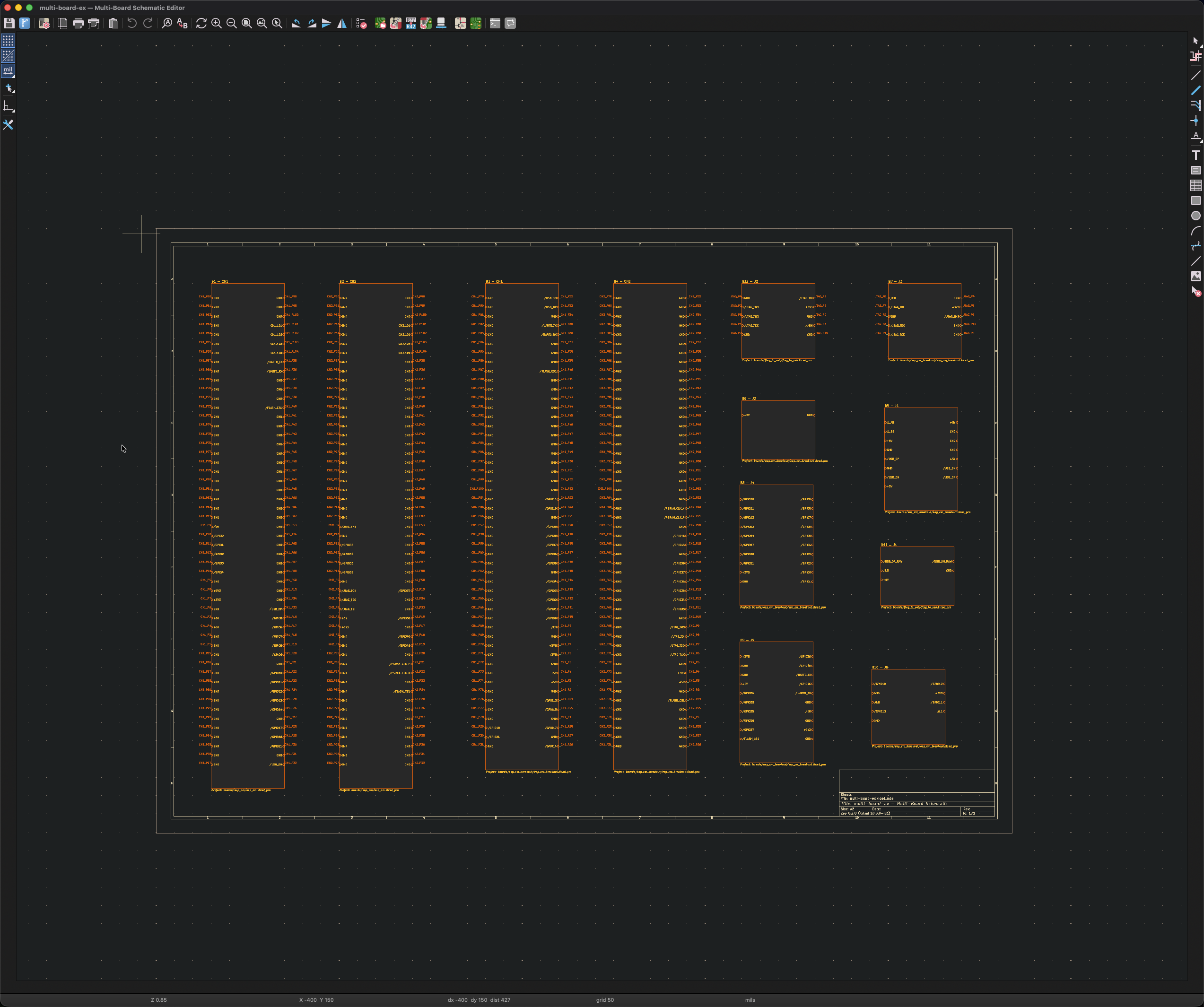
- One module block per connector symbol on each sub-board's schematic. Connectors are detected by reference prefix:
J,P,CN,CON(case-insensitive). A sub-board with three connectors becomes three module blocks on the MBS. - The wires and labels connecting module-block pins together (the cross-board net topology).
Module blocks are populated and updated by refreshing the MBS from the sub-projects' connectors.
Manage sub-boards
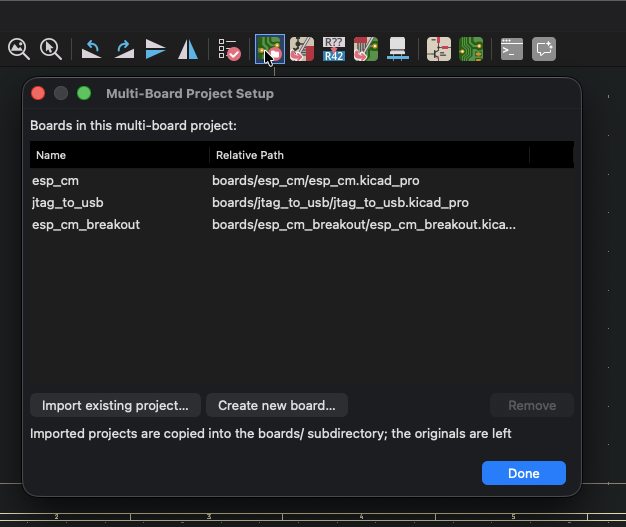
Add, remove, or rename sub-boards from Tools → Manage Sub-Boards, or click the Manage Sub-Boards button in the MBS toolbar.
Adding a board
When you add an existing board, Zeo copies its files into a new directory under boards/. There is no live link back to the original. Edits don't flow either direction after the import.
Removing a board
Removing a board only unlinks it from the container. The board's files stay on disk in boards/<name>/ until you manually delete or move them. This means accidental removals are recoverable: re-add the board from the same dialog to relink it.